
GOGITO Bot Dokkan Battle Guide
Run bot
Unofficial user guide · v3.0.2

Run Dokkan
Battle on PC.

GOGITO is a command-line automation bot for Dragon Ball Z Dokkan Battle. Browse every command, see the expected result, and move from setup to farming without guessing.

commands
5tiers
10categories
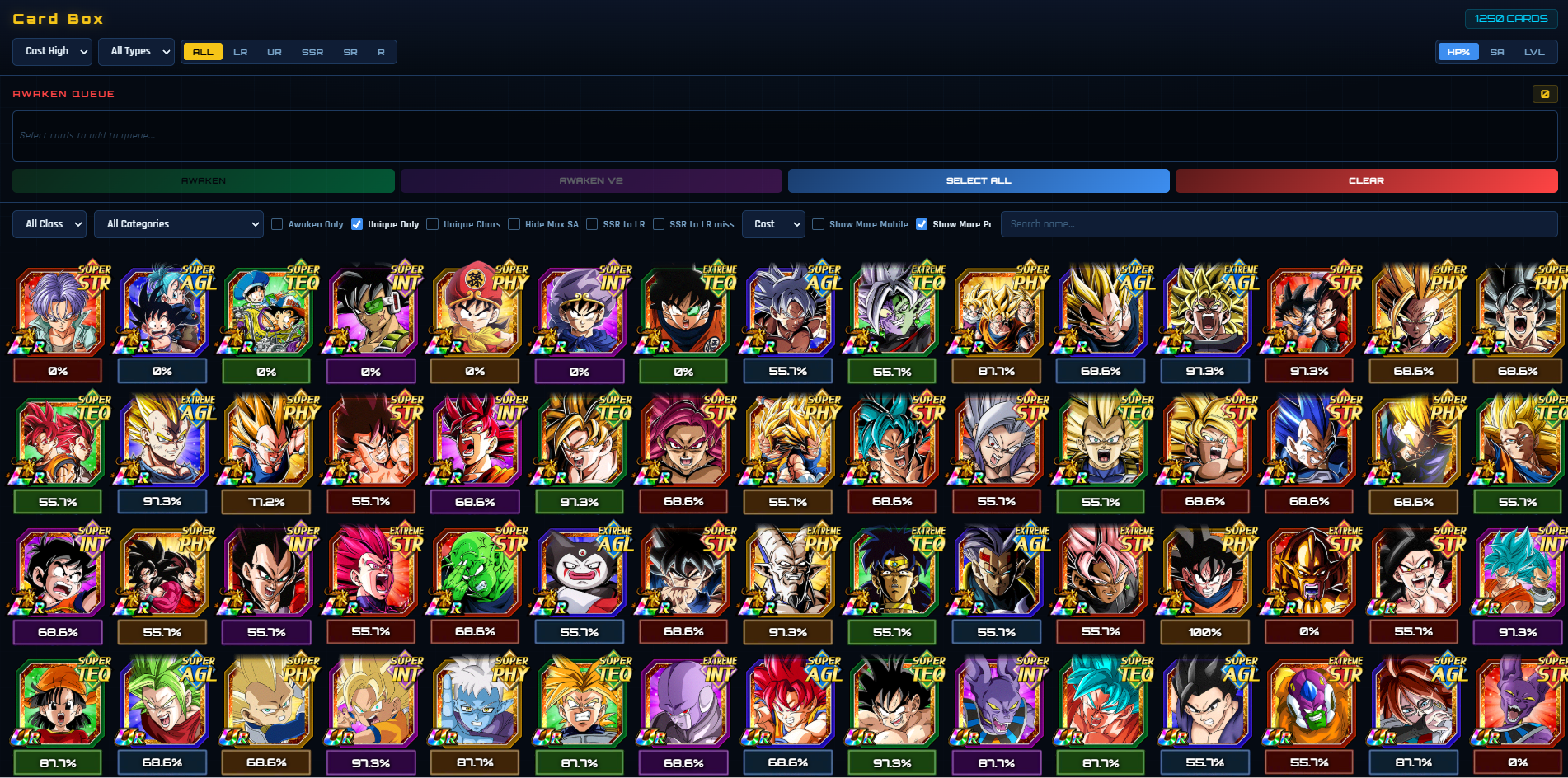
GOGITO Bot Card Box GUI preview
Card Box GUI preview
load mainacc gift omegafarm events keys
01 · Setup

Getting Started in 3 steps

Run the bot once, log in, then drive everything from the in-game command prompt.

1

Download & launch

The bot ships as a single Nuitka-compiled .exe. No Python install, no terminal setup — just double-click to launch.

DokkanBot.exe

If Windows asks for Visual C++ Redistributable, install the latest x64 build from Microsoft and re-launch.

Result: bot menu
2

Create or load an account

You can sign up a fresh account, log in with Google, or load a saved one.

new gb android       # 1 Global Android account
login gg jp ios      # Google login on Japan iOS
load mainacc         # load a save
Result: account loaded
3

Type a command

Once logged in, type help to list everything, or jump straight into farming.

help
omegafarm
events
zbattles
Result: help screen
01

Main menu

Use new, load, login, list, settings, or setproxy here.

02

Account prompt

After an account loads, run info and gift first so you know the account state.

03

Browser GUI

Commands like box, eventgui, summon, and settings open a local web panel.

04

Long run

Farm commands print progress in the terminal. Stop safely with Ctrl+C.

02 · Workflows

Use the bot by goal, not by memorizing commands

Pick the job you want, run the commands in order, then use the reference below only when you need details.

First run

Load an account and verify it

Best first check after opening the bot or receiving a save.

  1. list to find saved accounts.
  2. load mainacc to enter the account prompt.
  3. info to confirm rank, stones, box size, and friend code.
  4. gift to claim gifts and mission rewards.
New account

Create or sign in

Use this when starting fresh or logging in with Google.

  1. new gb android for a Global Android account.
  2. login gg gb android if the account is already linked to Google.
  3. gift and info once the account is loaded.
Farm stones

Clear story, events, and EZA

Good for fresh accounts or accounts with many unfinished stages.

  1. quests clears unfinished story quests.
  2. events clears active event stages.
  3. zbattles clears active Z-Battles up to level 30.
  4. omegafarm runs the big combined farm when you want the bot to handle the queue.
Cards

Farm medals or F2P cards

Use GUI commands when you do not remember IDs; use direct commands when you already know them.

  1. eventgui to pick stages visually.
  2. medalsgui to queue medal farming from a browser panel.
  3. farmmedal card <card_id> to farm every medal for a card.
  4. farmdupe <card_id> <qty> to farm duplicate F2P copies.
Box

Inspect box, teams, and links

Use these before link farming or awakening so you know what the account actually has.

  1. card view for a safe view-only box browser.
  2. box for full card box actions.
  3. team view to build or inspect teams.
  4. farm link when the active team is ready.
Summon

Find banners and summon

Start with the GUI if you are unsure which banner ID to use.

  1. list summons to print available banners.
  2. summon or summonsgui to open the banner browser.
  3. summon <id> m 10 to run multis directly.
  4. summon <id> m <card_id> to stop when a target card appears.
04 · In-game

In-Game Commands

Once an account is loaded, these are the commands available at the bot prompt. Commands marked Basic (Free) do not require Patreon. VIP and Premium commands require a paid tier.

05 · Access

Tier System

Commands are gated by your license tier. Higher tiers inherit lower-tier permissions.

Basic

Free no Patreon required 20 free accounts
  • Account info, gifts, refresh, database update, rename, Google link/unlink.
  • Card view, card/item lists, teams, deck switch, selling, and box capacity.
  • Story quests, areas, active events, Dragon Ball Stories, event GUI, and omegafarm.
  • Basic EZA/Z-Battle progress to level 30 plus EZA level/range farming.
  • Medal farming, F2P dupe farming, rank info, summons,utility toggles.

VIP

$3.77 / month 250 accounts
  • Card Box Viewer and Auto Awaken V1 + V2 Beta.
  • Team Builder and Link Skill Farming to level 10.
  • F2P Card plus Blue/Green Gem farming.
  • Clash, Event Keys, Card Selling Auto.
  • Includes all Basic (Free) features and Discord access.
Join VIP

Premium

$6.77 / month 400 accounts
  • Hidden Potential system access.
  • Exclusive Baba Shop Viewer.
  • Use all features without limitations.
  • Suggest ideas for developing new features.
  • Includes VIP features and Discord access.
Join Premium

Elite

$9.77 / month 750 accounts
  • All Premium, VIP, and Basic (Free) features.
  • Full access to the DBL bot.
  • 20 new accounts created on your behalf.
  • Includes the 14k Stones new account creation method.
  • Early access and Discord access.
Join Elite

Supreme

$12.77 / month 1,200 accounts
  • All Elite, Premium, and VIP features.
  • Private chat channel with owner.
  • Full access to the DBL bot.
  • 100 new accounts created on your behalf.
  • Name in community credits and Discord access.
Join Supreme
06 · Fix issues

Troubleshooting checklist

When something fails, identify which layer failed first: launcher, login, database, proxy, or a running command.

Bot does not open

Install the latest x64 Visual C++ Redistributable, then relaunch DokkanBot.exe.

DokkanBot.exe

Token, 401, or session error

Refresh the active session. If it keeps failing, return to the menu and load the account again.

refresh
exit
load mainacc

Database looks old

Force a local database refresh before retrying stage, card, summon, or item commands.

updatedb

Proxy or connection fails

Clear the proxy to test direct connection, or set a known working HTTP/SOCKS proxy.

setproxy none
setproxy http://127.0.0.1:7890

Command is running too long

Stop the active job, return to the prompt, then run a smaller command to isolate the issue.

Ctrl + C
stage 101001 3 1

Not sure where you are

If the prompt is confusing, use help, info, or exit to re-orient.

help
info
exit
07 · FAQ

Common questions

How do I stop a running command?

Hold Ctrl+C. The bot catches the interrupt and returns to the command prompt.

The database looks out of date — what now?

Run updatedb. The bot auto-runs it on first DB error, but you can force a refresh any time.

Where are saves stored?

In the Saves/ folder next to DokkanBot.exe. Each save is a JSON file with the account identifier and proxy.

Can I run commands in batch?

Yes — put one command per line in a .txt file inside custom_commands/, then run custom and pick the file.

Do I need a screenshot for every command?

No. Prioritize screenshots for state changes and GUI commands first: menu, account loaded, help, settings, event GUI, card box, summon GUI, and common errors.

How do I add my own screenshots to this guide?

Drop a PNG into dokkan_guide/src/img/ named after the command id (e.g. cmd-omegafarm.png). The card auto-loads it.